ComDesk Lead Chat
CommDesk is a Communications Desk staffed by the TCC lead team
to handle call drivers, work escalated customer issues, and is meant act as the
filter between other departments and the TCC.
CommDesk Chat is open Monday- Friday from 7am-7pm MST -AZT,
you can type your request in chat while waiting in the TCC lead queue.
ComDesk Lead Chat should be used for:
·
Quick
Truck Roll permissions
·
Service
call push ins
·
Outage
approval - Report outages with the form available on the TCC Training Page – Priority Report Form
·
Quick
or Simple questions
· Firmware pushes – current firmware list available on
the Lead Specialist Conex wiki (Latest Firmware) (Modems and TiVo)
·
Requesting equipment be made available.
o After checking the Equipment Lookup page for Sparklight owned equipment to ensure it’s not in a Write Off or Missing status, you can request equipment be made available in ComDesk Lead Chat only, unless no response is given within 2 minutes.
§ Customer Owned equipment does not need to be checked
via the above link, as we can adjust anything on customer owned equipment
except when it’s already active on an account
o
Example
request: Greetings, I have modem mac address 00:00:00:00:00:00 that is in a
“Returning” status that I need to have made available for account number
100000000.
Please
remember, the majority of ComDesk chat should be used
for quick fixes during Lead queue except where noted above.
Comm
Desk Chat has added a new channel for everyone called “Multi-User Tracking”.
This is
a special channel that Leads, and Leadership can use to put out a call for Live
and Developing Events. It can be used to put out a call for common issues as
they develop and gather examples in real time. However, there is a catch, you must
see the posting to the channel to be aware of what is going on. Many of us have
turned all the notifications from Teams off and this is one channel you will
want to see and address while on a call.
First,
open the Channel Notifications for the specific channel

Next
set the “All New Posts” & “Channel Mentions” to “Banner and Feed”
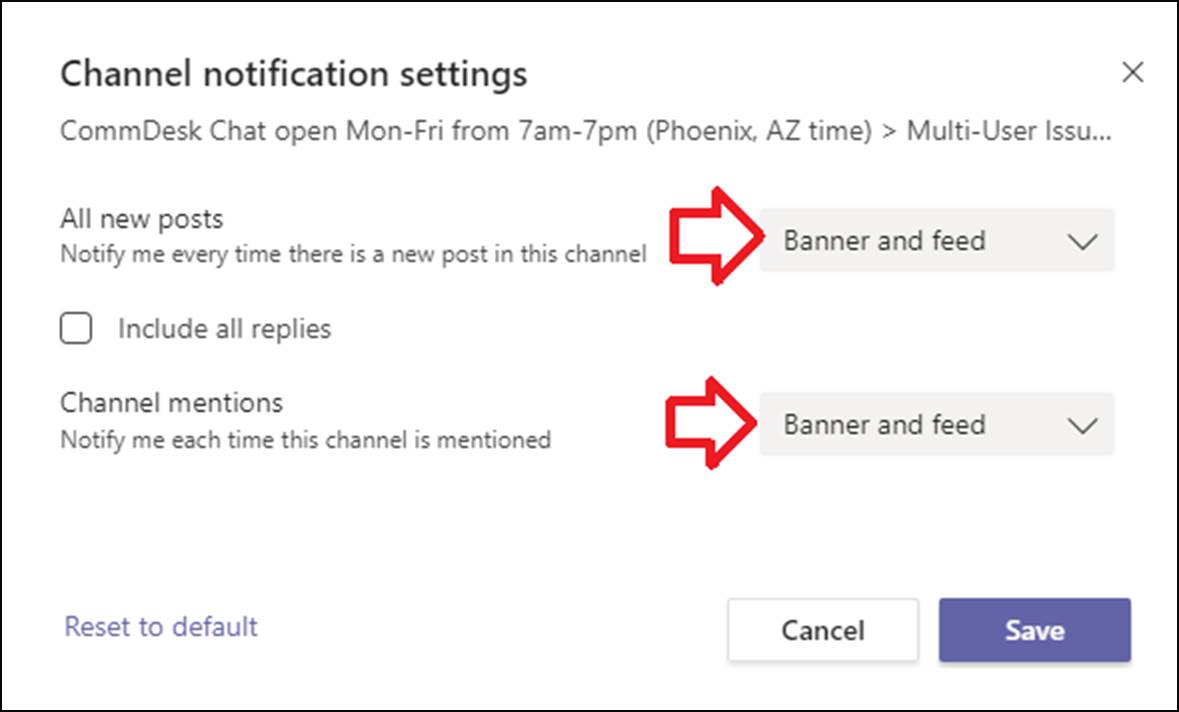
This
allows the leads to put out the call for examples and check for developing
problems & you will see the notification and be able to respond!
Com Desk Lead Chat it is located in Teams.
Updated Sep-20 by:
Training@cableone.biz To
submit feedback about this resource please submit a Training
Ticket