Email
Retirement
E-mail
Retirement Overview
Business customers are not impacted by this initiative at
this time.
There will be a secondary project focused on business email
accounts, but that will not start until after all residential emails are nearly
completed, which may be 4th quarter 2021 or later.
Over the next 12 months, all residential customer email
accounts provided by Sparklight/NewWave will be discontinued, market-by-market,
including the following:
@cableone.net
@newwavecom.net
@nwcable.net
@mycitycable.com
As a result, customers must select a new email provider and
export their contacts and any emails they wish to save from their Sparklight or
NewWave email account.
Importing E-mail & Contacts (Gmail)
Importing Existing Messages and Contacts
Have your customer log into their Gmail account.
In the top right, click Settings  See all settings.
Click the Accounts and import tab.
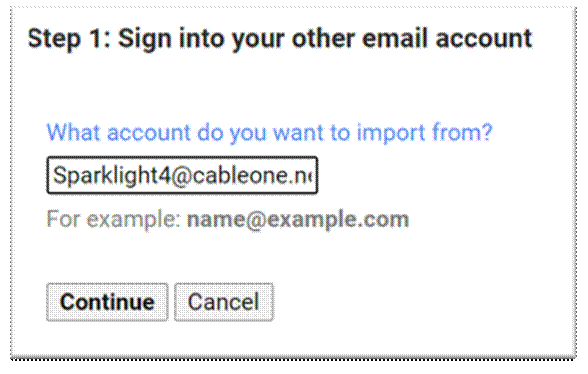
In the second section, click Import mail and contacts.
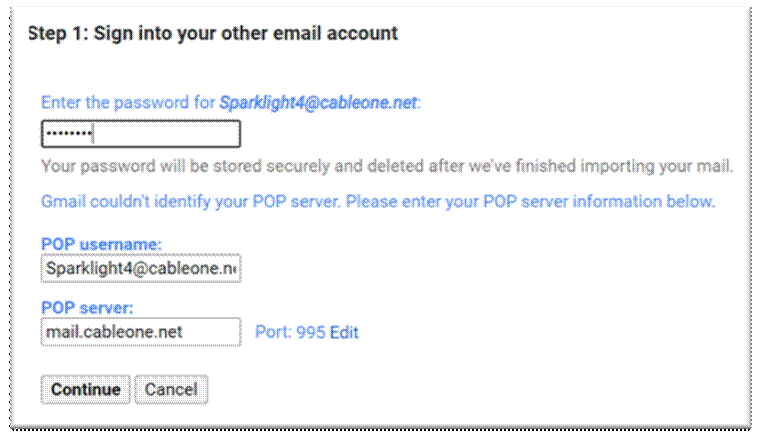
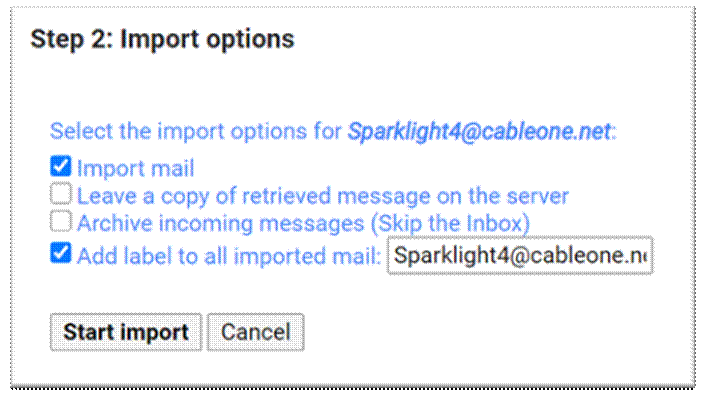
Follow the steps on the screen.
Click Start import.











NewWave(NED) POP
Server Information Incoming server
address - mail.newwavecomm.net Port: 110


· Gmail will
automatically forward messages sent to your customer’s other account for
30 days.
· If you no
longer wish for Gmail to do this, click the delete button on the right-hand
side.



These instructions are available at https://support.sparklight.com/hc/en-us/articles/360057144053-Download-Emails-from-your-cableone-net-email-account-to-Gmail
This is
helpful if they forget to update a specific client/family member/etc. It will continue to forward emails
because of this. They can choose to
delete this to prevent spam, etc.
Customer’s choice.
Importing
E-mail & Contacts (Outlook.com)
1. Have your
customer log into their Outlook account.
2. In the top
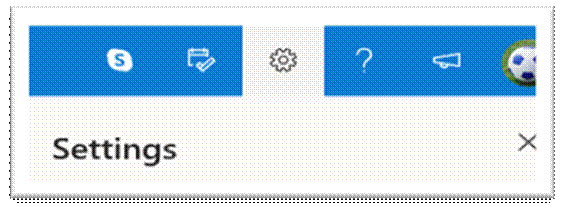
right, click Settings  View all Outlook settings.
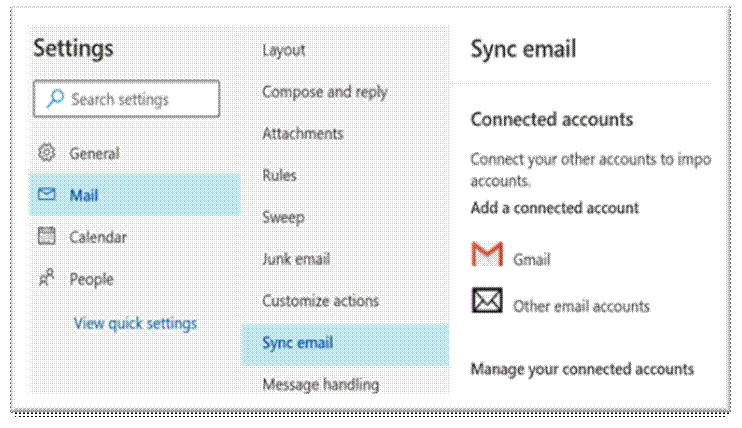
3. Click Sync
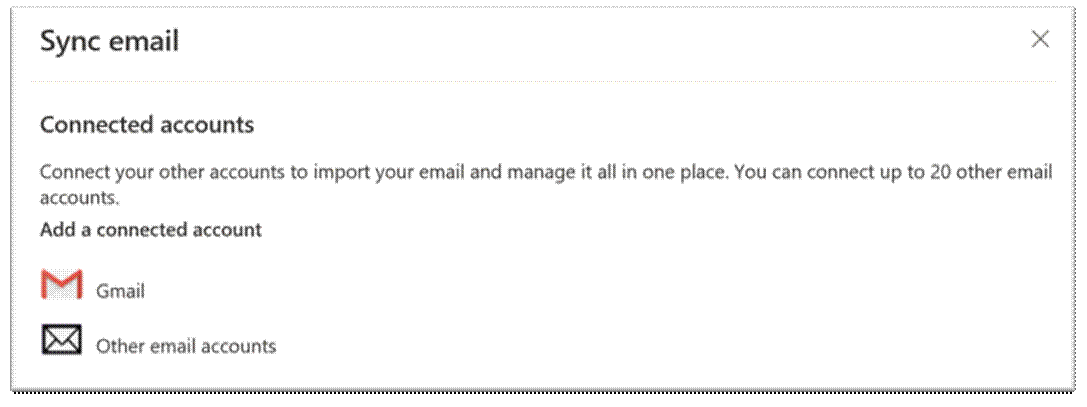
email, then select “Other email accounts”.
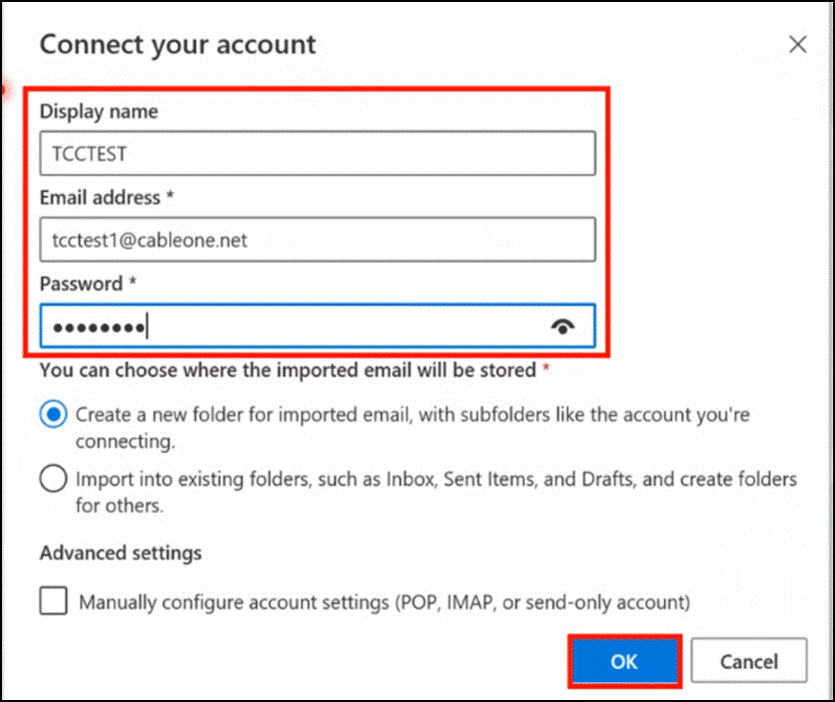
4. Fill in the
necessary fields.
•
There are two options as to how you want to view your
emails.
o
Create a new folder dedicated to the cableone.net
account or
o
Import into the existing folders in your Outlook.com
account.
5. Click
“OK”.



Importing
Existing Messages and Contacts
7. You will see
the new account listed as a “connected account”.
o
Close the Sync Email window and return to your inbox
home page.
o
Under “Folders”, you will
see the email folder for cableone.net if you chose to create a new folder,
otherwise your emails will download in similar previously used folders.


They can continue this process here and continue
adding additional email addresses to Outlook.
Creating
a New E-mail (Gmail)
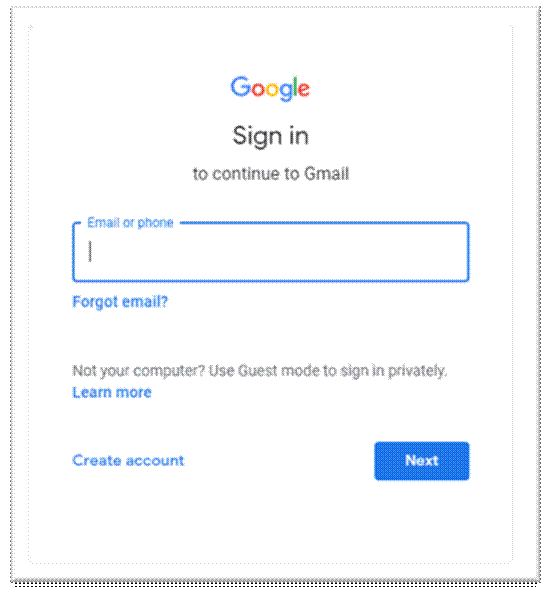

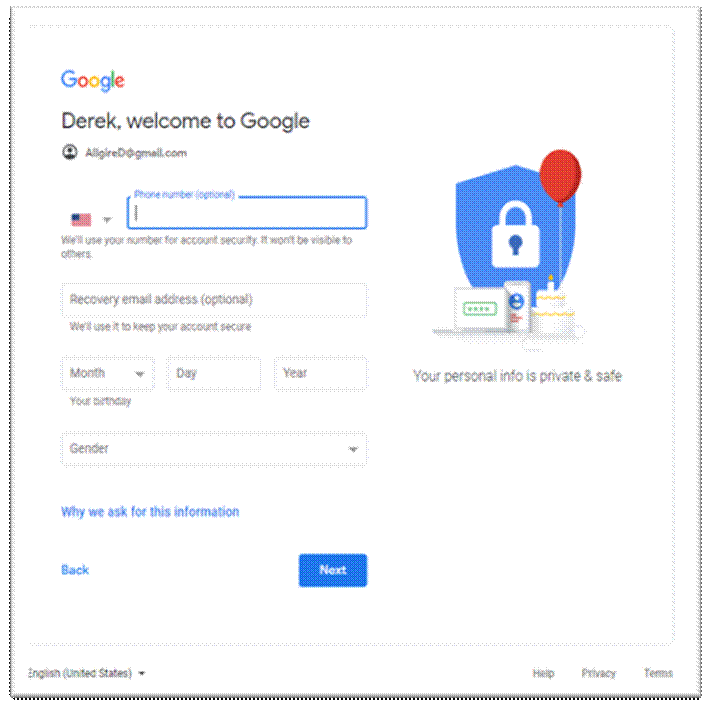
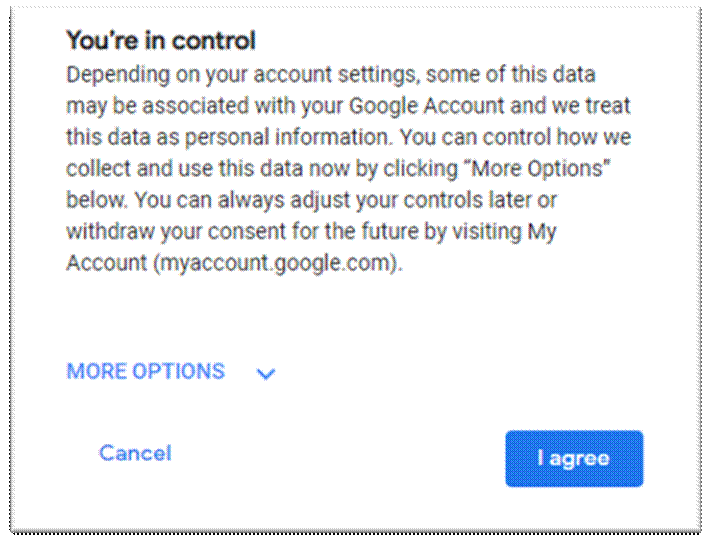
Creating
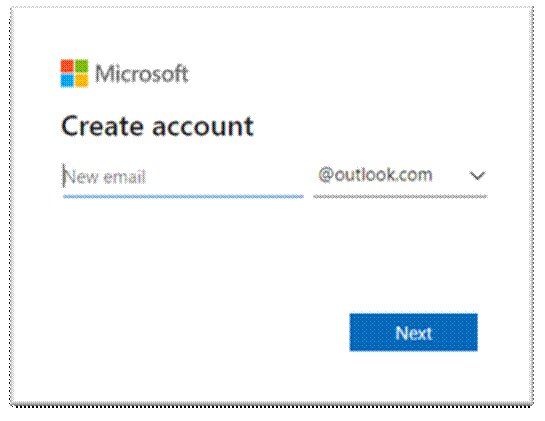
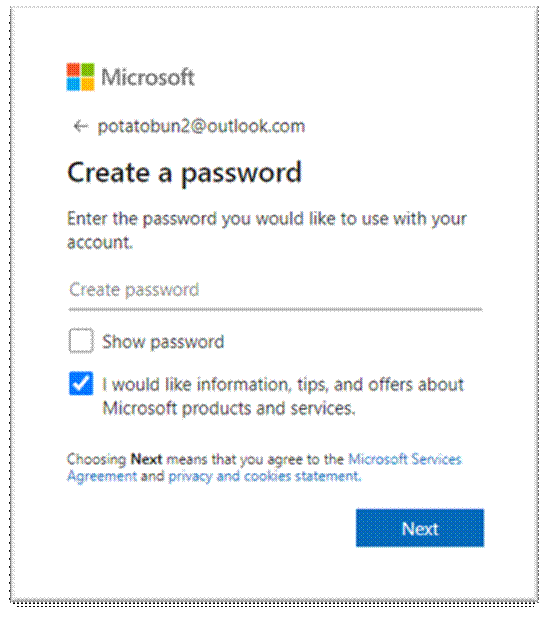
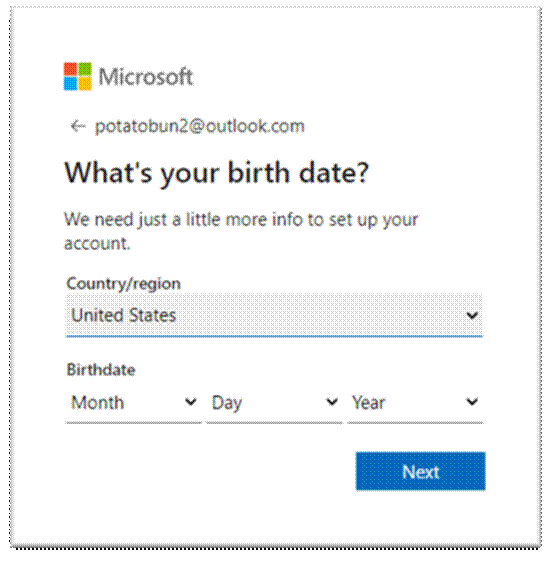
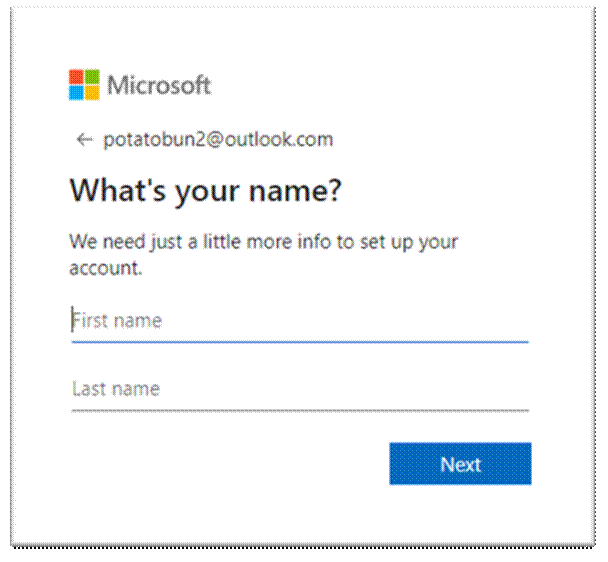
a New E-mail (Outlook.com)

Option of creating @outlook or @hotmail afterwards.
Forwarding
E-mail
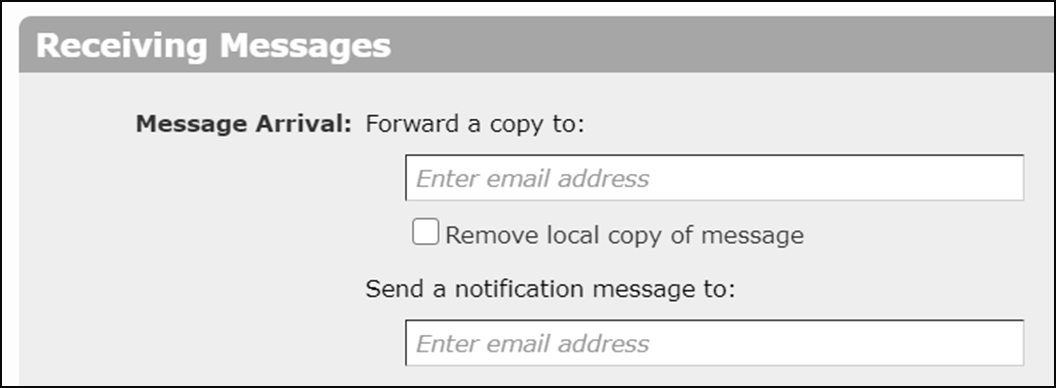
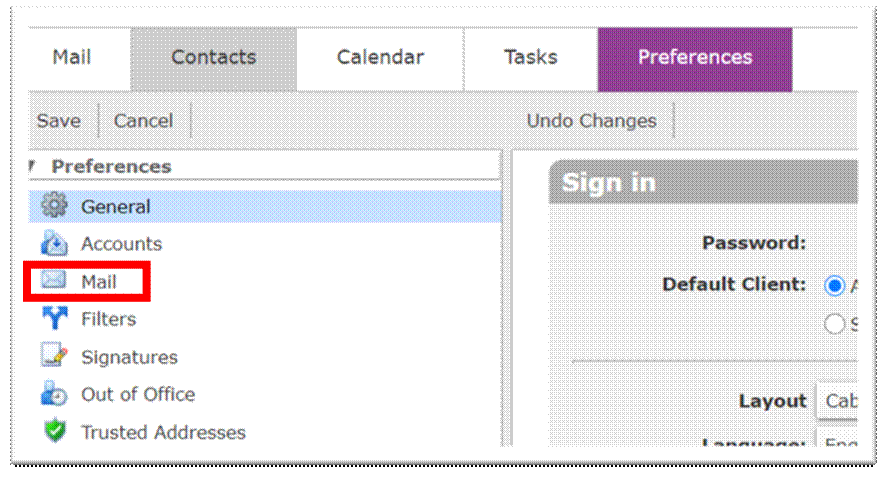
Forwarding New Messages
- Have
your customer log in to their webmail at the Sparklight website.
- In
the top left, click Preferences.
- Click
on Mail from the menu on the left-hand side.
- In
the “Receiving Messages" section, enter the email address you
want to forward messages to.
- Click
the Save button in the top left.



Auto
Reply
Setting
up Auto Reply (Out of the Office)
If your
customer wants an easy way to ensure that all their friends and family are
notified and reminded about their new e-mail address, consider offering to help
them set up an Auto Reply, or Out of the Office/Vacation responder.
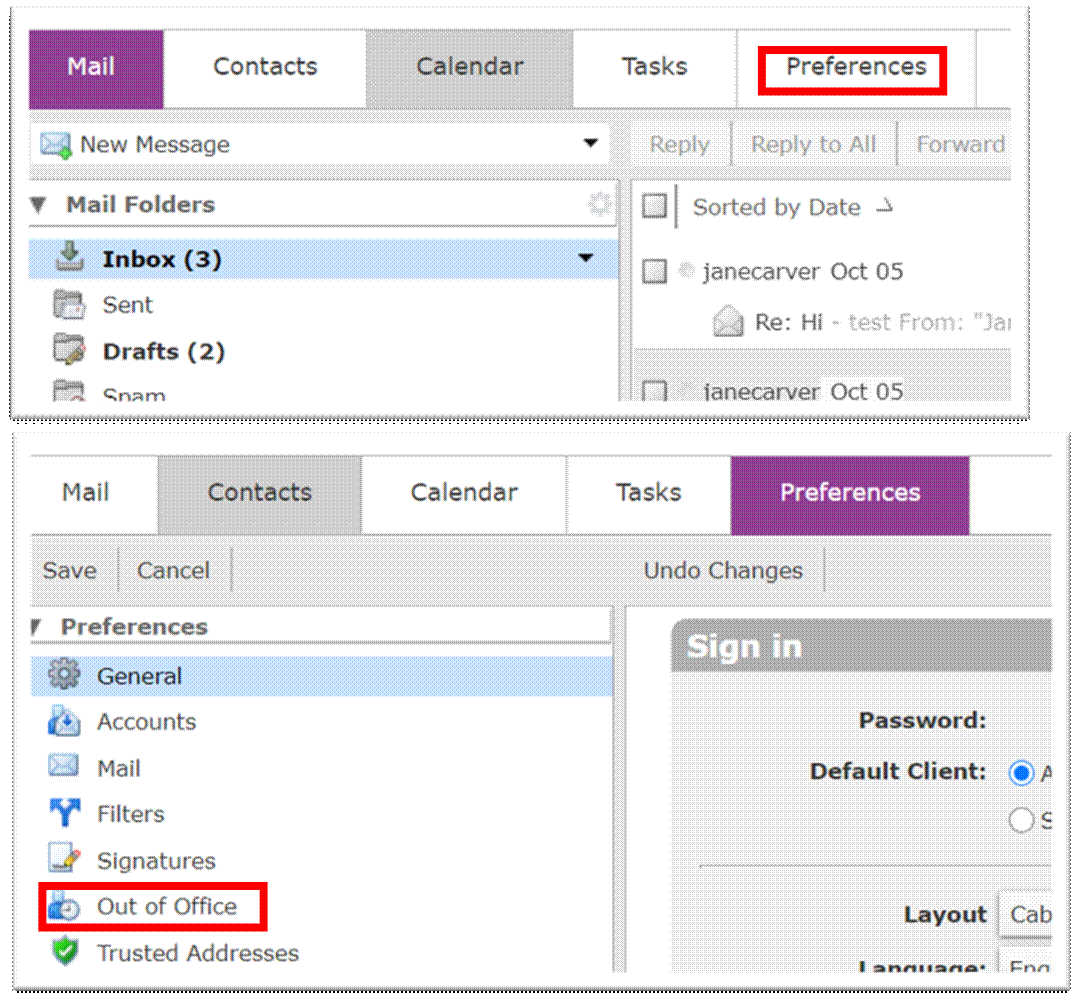
1. Have your
customer log in to their webmail at the Sparklight website.
2. In the top
left, click Preferences.
3. Select
“Out of Office”.
4. Select
“Send auto-reply message”.
5. Enter your Auto-Reply
Message.
6. Choose
additional options, if applicable.

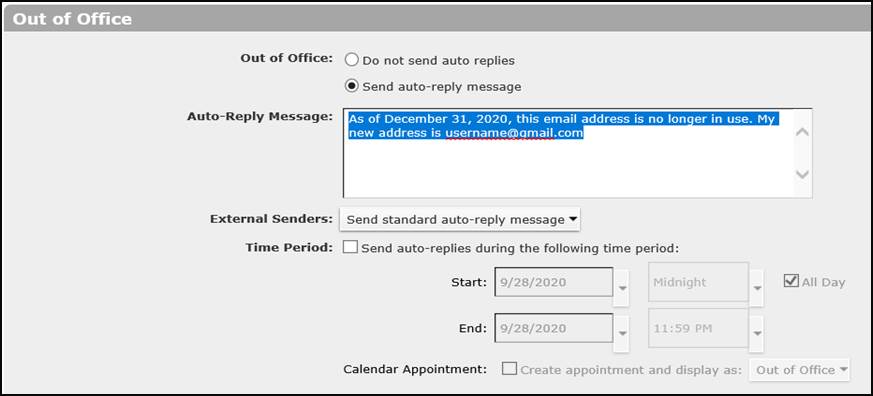
Auto
reply message is not automatically filled in. They can fill out the message that will
auto reply. Encourage them to add
their new address. BUT also advise this will also alert anyone that messages
the customer...including spam/phishing attempts.
POP Mail Clients
Backing
up E-mail with POP Client
Another
way you can assist a customer with backing up their e-mail is by using an
e-mail client configured with POP3.
Any
customer who already has their e-mail account set up this way will not need to
do anything, but if the customer is using IMAP (as many of our customers are)
we will need to change their client over to using POP3 in order to ensure that
their e-mails are not lost once their mail box is deleted on December 9th.
Please
ensure that Synacor is set up to download all mail, including old mail.


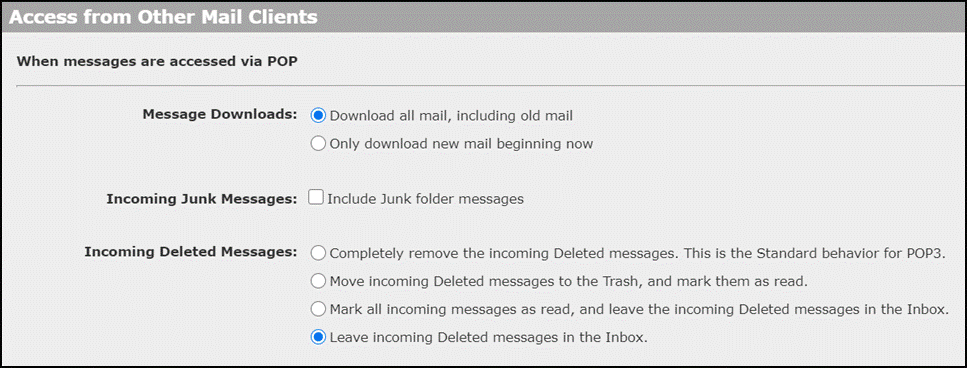
POP
Mail Clients:
To
Verify Port Info for Google: 

You can do the same for Outlook: 

SMTP: smtp.office365.com

You can change settings here:
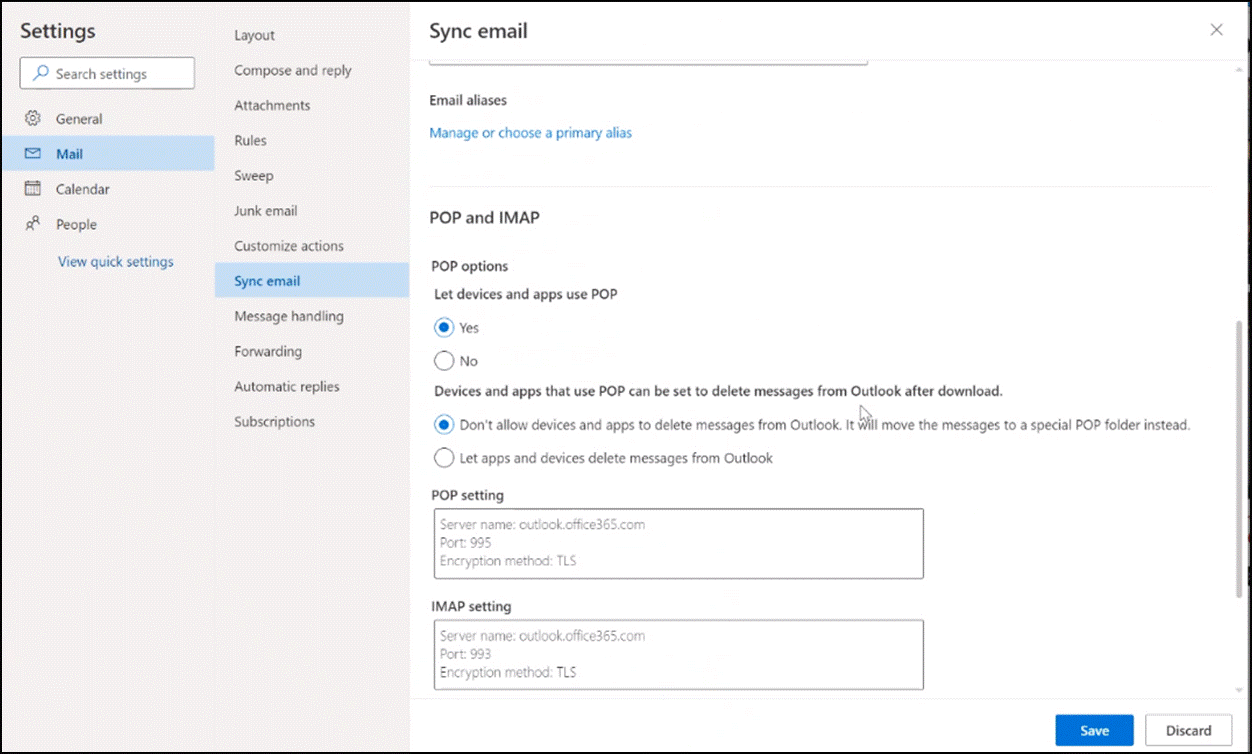
Select
POP here if needed.
IMPORTANT:
THIS IS A ONE TIME COURTESY
FAQ:
Q.
“Why are you discontinuing my Sparklight/NewWave email
account?”
A. “Many of our customers have expressed the need for a more robust email
offering than what Sparklight/NewWave currently provides. Because of this, the
number of customers using our email has steadily declined over the past several
years. As a result, we are discontinuing email service.”
Q.
“When will discontinuation of Sparklight/NewWave email take place?“
A. “Email will be discontinued for all
customers by the end of 2021. We will be discontinuing email service market by
market over the next 12 months. You will receive advance communication via
email with the timeframe of the email discontinuation in your area.”
Q. “Can you tell me the names of some other
email providers?”
A. “Alternative email providers include:
· Gmail: www.gmail.com
·
Outlook Mail:
www.outlook.com.”
Q. “What are the benefits of other email
providers?”
A. “Premium email services
(such as Gmail and Outlook), are available at no cost and offer an array of
functionalities, including the ability to create multiple email addresses,
abundant storage space, and a wide variety of tools. Additionally, these
services are portable, meaning you can keep your email address should you ever
move out of Sparklight’s service area.”
Q.
“How will I know when email is being retired in my area?”
A. “You will receive 45 days’ notice before your email service is
discontinued to allow enough time for a successful transition. During the 45-day
window, you will receive multiple follow-up notices and reminders with helpful
instructions on how to download existing emails and contacts; how to set up a
new email account; and how to upload emails to your new email account. Our goal
is to make this process as easy and seamless as possible.”
Q.
“Can I begin the process of moving my email before I receive
notice from Sparklight?“
A. Absolutely. You can sign up
for an alternative email service and begin using it any time you like. Free
email services with more robust offerings include Gmail and Outlook
Mail.”
Q.
“What do I need to do once I receive notification with the date my
email will be retired?“
A. “Customers must select a new email provider and export their contacts and
any emails they wish to save from their Sparklight/NewWave email
account.”
OTHER ACTION REQUIRED:
- If
your Sparklight or NewWave Communications email address is your contact
email for your Sparklight services, please visit us online to update your
account with your new email address via the Sparklight customer portal
today at: https://customer.sparklight.com/residential or contact us at
877-692-2253.
- If
you’re using your Sparklight or NewWave Communications email address
as a username or contact for any of your online billing accounts or social
media accounts, we suggest you update those accounts with your new email
address as soon as possible.
- After
setting up your new email address, if you need help forwarding your email
or exporting your contacts and emails, please visit
www.sparklight.com/emailretirement for detailed step-by-step instructions.
Q.
“Will E-mail retirement affect Business Customers? “
A.” Business customers are not impacted by this initiative at this time. There will
be a secondary project focused on business email accounts, but that will not
start until after all residential emails are nearly completed, which may be 4th
quarter 2021 or later.”
We can
assume there will be other notifications via paper bill, etc. But we cannot
confirm at this time.
Updated Mar-21 by:
Training@cableone.biz To submit feedback about this resource
please submit a Training Ticket
